
CaffeinateCat
Mac. In your menu bar.
Keeps your Mac awake. And when you want it to, keeps it running even with the lid closed, on battery, so you can slip it into a bag with the job still going.
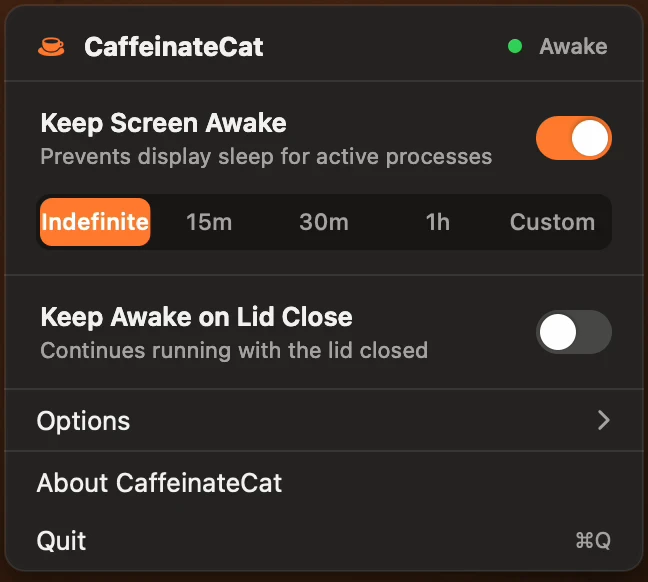
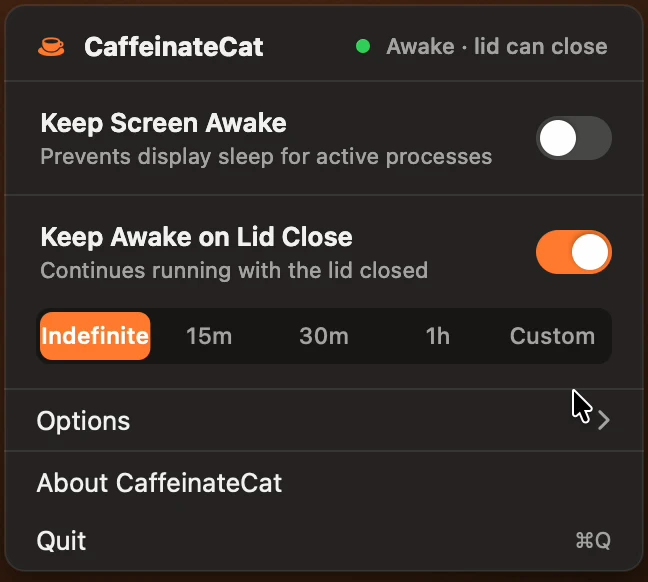
Two levels of awake
Each is one switch. Turning one on turns the other off.
- Keep Screen Awake
- The screen stays on and the Mac does not go to sleep from being idle. Close the lid and it sleeps as usual. Nothing to set up and no permission needed. It starts by itself when you open the app.
- Keep Awake on Lid Close
- The same, and when you close the lid everything keeps running, even on battery. This is the one for a build, a local server, a long download or a coding agent that has to carry on.
Set it and forget it.
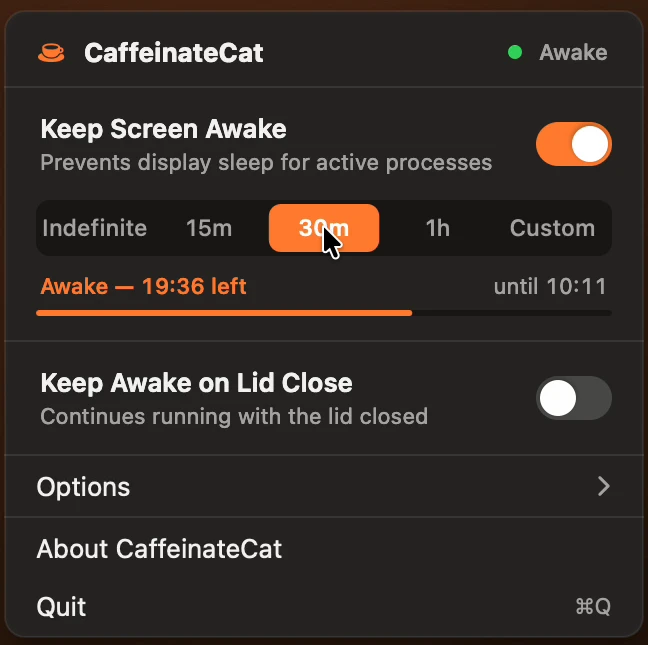
Indefinitely, for 15 minutes, 30 minutes, an hour, or any time you like with Custom. Type the hours and minutes, or click the arrows, and the timer restarts at once.
While it runs, the time left sits next to the icon in the menu bar, with the clock time it ends at. Timers keep counting while the Mac sleeps, so a run that spans a sleep still ends when it should.
Close the lid. Keep working.
Builds, servers and agents keep running with the lid shut, even on battery. This needs a system setting that only an administrator can change, so the first time you turn it on, macOS asks for your password once (Touch ID works too).
That sets up a small rule that allows exactly two commands, pmset -a disablesleep 1 and pmset -a disablesleep 0, and nothing else. You can remove it at any time from Options.
Your battery, at a glance.
The menu-bar cup is also a battery gauge. The drink inside sits at your battery’s level, orange while it is keeping the Mac awake and grey when it is off, and the cup steams in lid-close mode.
It switches itself off as the battery falls through 20% and again through 10%, so a Mac in a bag cannot run itself flat. On by default, and you can turn it off.

It never leaves your Mac stuck awake
The lid-closed setting survives a reboot, so CaffeinateCat goes to some lengths to never leave it on.
- Restored on quit, and on signals
- Turning a mode off or quitting puts normal sleep back, and the app reads the value back to confirm it took. It does the same on
SIGTERM,SIGINTandSIGHUP. - A watchdog for crashes
- While lid mode is on, a tiny helper in its own process group waits for the app to exit and restores sleep itself. A crash, a Force Quit or
kill -9cannot strand the setting. - Checked on the next launch
- If the app ever dies holding the setting anyway, such as after a power loss, it notices on the next launch and restores it. If that fails, it tells you the one command to run.
- Re-checked while it runs
- Every 30 seconds, and after each wake, it checks the setting is still on and the watchdog is still alive.
The rest, in short
- Private
- No account, no analytics and no ads. It does not send anything about you anywhere. Read the privacy policy.
- One click, from the menu bar
- Click the cup to open the panel. Right-click it to turn keep-awake on or off in one go, using the mode you used last.
- Your options
- Let the display sleep while the Mac stays awake, turn off at low battery, keep awake when the app opens, and open at login.
- Updates itself
- It checks noxdrop.com for a new version and installs it when you click Install. Every update is signed by us and checked before it is installed. An update restarts the app, which turns lid-closed mode off.
- Easy to share
- Send it to a friend. The first time they turn on lid-closed mode, it sets up its own permission with a single administrator prompt.
CaffeinateCat for Mac
Version 1.3.0 · 2.4 MB · macOS 12 (Monterey) or later · Apple silicon and Intel. Notarized by Apple, so it opens without warnings. Questions: Email Noxdrop Systems
Open the disk image and drag CaffeinateCat to Applications. Read the terms. A Mac that runs with the lid closed gives off heat, so do not leave it in a closed bag for long. The terms say more.